What's new in Mutiny
The latest features, improvements, and updates that ship across Mutiny.
November 2026
On an account's "People" tab, you see people whose email address belongs to another organization classified as external, so you can distinguish them from people at the account.
You can listen to audio briefings on Home and through expiring links in your email digests, including on your phone. Mutiny covers your open action items, upcoming external meetings, notable account activity, and asset engagement.
In new HubSpot CRM change proposals, you see owner names and can select from the owners HubSpot lists. Earlier proposals keep their saved values, and a deactivated owner may still appear as an ID; Salesforce owner changes are outside this update.
With CRM updates enabled, Mutiny can suggest preparing CRM changes after a recorded customer call. You review the proposal before choosing "Update"; Mutiny does not write the changes until you approve them.
You can change your profile photo from your Brain cover page or your main profile settings. Mutiny uses your saved photo across the app.
On your Mac, you see ready meeting follow-ups in a Mutiny notification card at your saved notification position, with the meeting's time and title. The card closes after 20 seconds, and Mutiny waits until recording ends before showing it. Older notifications remain available in your inbox.
You can choose Gmail or Outlook during setup and from email and calendar connection prompts. Outlook uses one connection for both email and calendar; on Integrations, you disconnect your current Google or Outlook connection before switching providers. If you join an existing workspace, email and calendar connections remain optional.
Mutiny applies your saved style to automated meeting prep and follow-ups. You can calibrate the style in follow-ups you start yourself; unattended runs do not stop to ask for calibration.
From "+" → "Add asset," you can attach an email as inspiration when starting a chat. Mutiny reads its subject and body without opening it as an editable tab; search includes emails in chats you can read, including colleagues' shared chats.
When you ask Mutiny to personalize an asset from your template, Mutiny keeps its typography, buttons, logos, and proof sections. Mutiny changes these only when you ask or the content does not apply, and tells you what it removes.
You can enter your ZoomInfo app's client ID and client secret in Mutiny's connection setup, then complete ZoomInfo sign-in and consent. The connection is shared across your organization and uses the authorizing ZoomInfo account's permissions.
Use "+" → "Add asset" to browse recent work or search assets you can access, including shared work. You can attach one asset as inspiration or a starting point for a new chat; "Upload files" remains available in the same menu.
In the desktop Meetings window, you can open the bell to read notifications or choose "Mark all read." Unread badges stay in sync with the web app, and opening a notification marks it read and takes you to the same destination in your browser.
In the desktop Meetings window, you see "Prep" on upcoming meetings when completed prep is available. You can open your prep chat, or the shared prep document if you are another account follower; meetings without finished prep keep their existing controls.
In the desktop Meetings window, past meetings show "N to review" for suggested actions still waiting for you. You can select the row to open those suggestions on the web; viewing a meeting alone does not lower the count.
For a meeting without an account, use "Invite team" in its actions menu to give specific teammates or your workspace "View" access to the summary and transcript. Account-linked meetings have workspace-wide "View" access and cannot be private until you remove them from the account, which resets access to "Private." Sharing outside your workspace and edit access are not included.
When you open "Review" on a sent email action item, you can still read the email's content alongside its sent status.
On eligible accounts you follow, "How to move the deal forward" suggests a stakeholder search when you know few people there. You can choose the idea or ask Mutiny in chat to start a search, approve its credit cost, and review the people it finds on the "People" tab.
You can ask Mutiny to update HubSpot or Salesforce records in a chat without a linked account. Chats linked to an account continue to use the CRM change proposal when CRM updates are enabled.
If CRM updates are enabled and you follow an account with a connected HubSpot or Salesforce CRM, choose "Update CRM" from the account's three-dot menu. You can review current values, edit proposed values, and select individual changes before choosing "Update." Mutiny applies your accepted changes and lets you retry failed rows; records changed since the proposal are marked stale instead of overwritten.
On the meeting page, you can read the finished document in "Prep" when at least one prep has been completed on the account. A single prep opens automatically; you can choose among multiple prep documents. After the meeting, "Prep" appears after "Summary" and "Transcript"; digest links continue to open the document in its thread.
Before you approve a Slack message, Mutiny labels the action "Send as Mutiny bot to …" and offers "Copy text" as an alternative. After a successful send, you receive a copy in your Mutiny DM with the recipient and a link to the sent message.
When a routine needs your approval for an action, Mutiny pauses and shows the approval prompt. You can approve or reject it to resume the work, and the chat remains available when the routine pauses.
When you ask Mutiny to create an asset or document in an account-linked chat, Mutiny attaches the new work to that account automatically. This applies to newly created work; existing work is unchanged.
On the meeting page, you see the attendee count alongside the meeting's date and other details. When the meeting is linked to a calendar event, Mutiny uses its invitee count rather than the number of speaker labels.
You see "Meeting prep" for preparation and "Document" for general documents in place of "Brief," so you can recognize the type of work you are opening.
You see suggestions and work awaiting review together in "Action items." Finished meeting prep stays in "Action items" until you view it.
Mutiny automatically prepares email reply drafts for your review. You can review the draft before deciding what to send.
In the Notetaker menu-bar menu, you see the current meeting title beside "Stop taking notes" when a title is available, even with the main window closed. In-person notes keep the plain "Stop taking notes" label.
In the asset editor, you can use rich-text controls and write a quick edit request in the same "Quick Edit" bar.
In Brain, you review changes prompted by your requests. Mutiny saves what it learns during its nightly updates directly, without adding those changes to your review list.
When you view a Brain page, you see its name in a pill in the chat box. Mutiny uses that page as context when your request does not name one.
In the asset editor, you can drag an image file directly onto an image placeholder to upload it into that position.
October 2026
When you view a document, you can use "Close workspace" to close the workspace.
You can upload a PDF in chat and ask Mutiny for specific information from its pages. Larger PDFs use summaries and targeted extraction; image uploads and the handling of Office and text documents are unchanged.
When Home shows templates because you have no integrations or accounts, you can scroll within each category while its header stays visible. “View all” opens the Templates page; the conditions for showing this view stay the same.
When you clear a field on a person's profile, Mutiny keeps it empty instead of filling it again through research. You maintain fields you override yourself; “Allow research updates” is no longer available.
On an account's People tab, you see six people per category and can use “Show more” to reveal the rest. Expanding a category preserves its existing order.
On a person's profile, you see a short source explanation for a field and a CRM entry in “Sources” when your CRM supplies details. Source hovers omit confidence percentages, dates, and repeated source chains.
In the asset editor, you cannot publish while your tab is disconnected or behind the latest published version. Mutiny shows the connection state and prompts you to reload when a newer version is already published.
When you create or update an event in connected Google Calendar or Outlook, Mutiny uses the calendar notification to refresh your account context. Scheduled refreshes remain a fallback when a notification does not arrive.
You can keep your existing skills as patterns in Brain, where Mutiny reads and updates your instructions. The separate Skills tab is removed.
In notification settings, you can use “Call follow-up ready” instead of the previous Automations alert setting. The Automations daily digest and unused Collaboration setting are removed; asset notification settings stay unchanged.
In the asset editor, you can compose a quick edit for another section while Mutiny finishes an earlier change. Your in-progress prompt stays in place when that change appears.
On an account page, you see assets ordered by when you last viewed them. Longer asset names wrap, with the relative date below the name, so you can read more of each title.
If you already use Mutiny and connect Gmail to start assistant onboarding, you can review the accounts Mutiny finds on Home. Suggested actions appear as they become available, without waiting for the full email-history review to finish.
The Mutiny Notetaker main window follows your Mac's light or dark appearance setting. The recording bar stays dark in both modes.
In the Mutiny Notetaker desktop window, use "Join & take notes" on an upcoming meeting when its join window opens. Mutiny opens the meeting link and starts notes after it detects that you joined.
On the desktop window's "Mutiny can't record right now" card, use "Quit and reopen" to restart Mutiny Notetaker. If a recording is saving, the app waits for it to finish before quitting.
In Home's "Need Review" section, use "Dismiss" to remove an item you do not want to act on. Dismissing it does not put the work in Completed.
If you can edit a template, you can move it between stages. Your template stays available in the stage you choose.
In the Mutiny Notetaker menu-bar menu, "Stop" appears first during a recording. Meeting-linked "Take notes" actions are grouped separately from in-person notes, and "Quit Mutiny Notetaker" sits at the bottom.
On an account's People page, you can request a stakeholder search, review suggested people, and accept or decline them. Mutiny asks before running another paid search and shows where a suggestion's details came from.
In a person's account chat, you can ask Mutiny to merge duplicate People. Mutiny asks for your approval before it changes the records.
On a person's card, Mutiny counts meetings when it has evidence they attended. Meetings they were only invited to remain in the list with an "Invited" label.
On a person's profile, Mutiny shows past meetings and groups occurrences of a recurring series in one row. The series counts once on the person's card, with the number of occurrences shown in the list.
A person's profile shows activity and supporting context in one "Sources" list, using the event date for meeting and email entries. The profile's action buttons remain visible while you scroll.
On an account's People page, cards within each group are ordered by role and then by meeting and email involvement. When a person has no stored name, Mutiny displays a name derived from their email address without changing the stored record.
On an account page, you can write a longer prompt in the chat bar as it grows with your text. You can drop a file onto the bar to attach it before sending.
When a suggested action contains multiple steps, you can select which steps to run rather than running the whole plan. The steps you leave unchecked stay available for later.
From the recorder's "Send diagnostics" or "Get help" option, you can describe what happened in one support window. "Include diagnostics from this Mac" is selected by default.
In Library's "Add by link," you can paste multiple YouTube watch links and add each video rather than only the first one.
When Mutiny puts a Library website into an asset, it links through the Library resource viewer. If you later update the website's destination, that link can continue to point to the same resource.
You can add YouTube watch, short, and other supported video links to your Library as separate resources. Each supported video shows its title and thumbnail; YouTube transcripts are outside this change.
On a website or Loom link in your Library, use the "Versions" tab and "New URL" to change its destination while keeping the same resource link, folder, and analytics. This does not restore older link versions or rewrite raw URLs already placed in pages.
Check it out →You can find an uploaded Library resource by its original filename even when its displayed title has changed.
When you upload the same video again, Mutiny recognizes the existing Library item instead of creating another copy.
In the desktop recorder app window, you can browse upcoming and past meetings and open a meeting's notes on the web. The window also keeps recording controls visible while you scroll; notes themselves open in your browser.
While recording, you can see a draggable pill with the recording state and waveform above other windows.
The recorder shows call-state controls at the recording pill and places other notifications away from those controls. You can use the on-screen controls as the call starts or ends.
The desktop recorder waits for you to start recording instead of automatically recording upcoming meetings. Use "Take notes" when you want it to capture a call.
You can add a website link to your Library even when the site blocks Mutiny from reading its page preview. The link remains usable without claiming to have a title or description that Mutiny could not retrieve.
When you leave and rejoin Zoom computer audio during a call, Mutiny keeps the recording session active so you can continue taking notes.
If your connection drops while the desktop recorder has local audio, Mutiny keeps the recording on your device and uploads it when the network returns, including after an app restart.
When you briefly leave and rejoin a Zoom call, Mutiny keeps recording in the same capture rather than splitting that call into separate recordings.
If a recording is not linked to a calendar meeting, you can attach it to the correct meeting when you own the recording and can access that event. Mutiny does not infer the match from overlapping times.
When a meeting has multiple recordings, you can choose which recording's summary and transcript to read on the meeting page.
If you try to close or reload a page during an active Library upload, you see a warning before leaving so you can keep the upload running.
If an account import stalls, you can use "Retry" to start it again rather than remaining blocked by the earlier attempt.
Mutiny limits imported calendar meetings to recent and upcoming events, so distant recurring instances do not crowd the meeting history used for account work.
When you add a website URL whose earlier Library item is archived, Mutiny creates an active Library item instead of returning only the archived one.
When captions cannot be generated for an uploaded Library video, Mutiny can still prepare its title and description instead of leaving those details waiting indefinitely.
When you rename a ready video in your Library, it stays ready to view instead of appearing to process again.
When you correct a meeting's speakers, Mutiny updates the related analysis so the summary and People context reflect the corrected attendees.
When you can read an account, you can read its recorder meetings' structured transcripts and summaries, including linked people. The meeting page uses the account's published copy, rather than limiting the full view to the person who recorded the call.
You can use "Merge into…" on an account Person to combine duplicate records. Mutiny carries the duplicate's known details and meeting links to the surviving person and follows old profile links to it.
You can see meetings and email activity involving a person even when a colleague, rather than you, participated. Meeting and email counts appear on the person's card; colleagues' email subjects remain hidden.
On a meeting transcript, you can use "Who is this?" to identify a speaker as someone on Your team. Mutiny shows that colleague under Your team in the attendee list and names them in the transcript.
The meeting page combines identified speakers with their invitee rows and counts each person once. For a meeting without a calendar invite, you can still see attendees found in the recording.
You can see a person's LinkedIn link labelled "LinkedIn" on their profile and edit the URL there.
When you open a Person from a meeting or another page, Mutiny shows the profile in a dialog so you can return to where you were.
You can add a Loom video to your Library even when it has no transcript or description. Mutiny uses the video's available title and duration for its Library details without claiming to know its contents.
You can receive one daily email covering eligible updates from your automations. The digest has its own setting, independent of live automation alerts, and reading an update does not mark the underlying work as done.
On the Templates page, you can review suggested templates based on similar assets, broadly useful work, or substantial editing. Each idea shows its source and reason; "Create" opens a template conversation for your review rather than creating one automatically.
Check it out →On a meeting page, the main action runs the first available "Generate follow-up" or "Generate meeting prep" option. Use the adjacent menu to choose another action.
You can see ready account actions, meeting prep, and proposed follow-ups in your notifications list, with links back to the relevant work. Your Automation updates setting controls live desktop alerts without removing the list entries.
On an account's "Your team" tab, you can see colleagues associated with the account beyond its followers, including CRM owners and team members where available. Their account roles appear when the connected CRM provides them.
When Mutiny can identify a speaker, you can open that person's profile from the meeting transcript.
You can review eligible asset visit updates in the same notifications list as other work. Your asset alert selection still determines which visits qualify, while the live alert and daily email settings work independently.
In the Library, you can select multiple resources and use "Archive" from the Active tab or "Unarchive" from the Archived tab. Items that cannot be changed stay selected, and the action is not available in Failed Uploads.
You can change your meeting auto-record preference in the web app or desktop recorder and use the same setting in both. The meeting scope you choose also governs which upcoming meetings Mutiny marks for automatic recording.
On upcoming meeting rows, "Will be auto recorded" appears when an active recorder installation is set to capture that meeting. Mutiny does not show the indicator for an older installation whose setting is unknown.
You can open recent notifications from the Home navigation entry and see how many are unread. Open "View all" for the full list, or mark notifications as read without completing the work they describe.
Learn more →You can set Automation updates, Daily automation digest, Asset updates, and Daily asset digest independently. Turning off a live desktop alert leaves its notification in your list and does not turn off the corresponding daily email.
When you compose an account email, you can find known account People as recipients and see matched People in email activity. A recipient you type manually still uses their email address for delivery.
The recorder's "Take notes" prompt stays visible until you choose it, dismiss it, or the call ends. You can start notes after a meeting takes longer than expected to connect.
September 2026
Follow along with what your agent is doing. Mutiny will provide brief progress updates while it works, making longer tasks easier to follow and keeping you in the loop.
You can now select multiple assets in a filtered view and archive them together.
August 2026
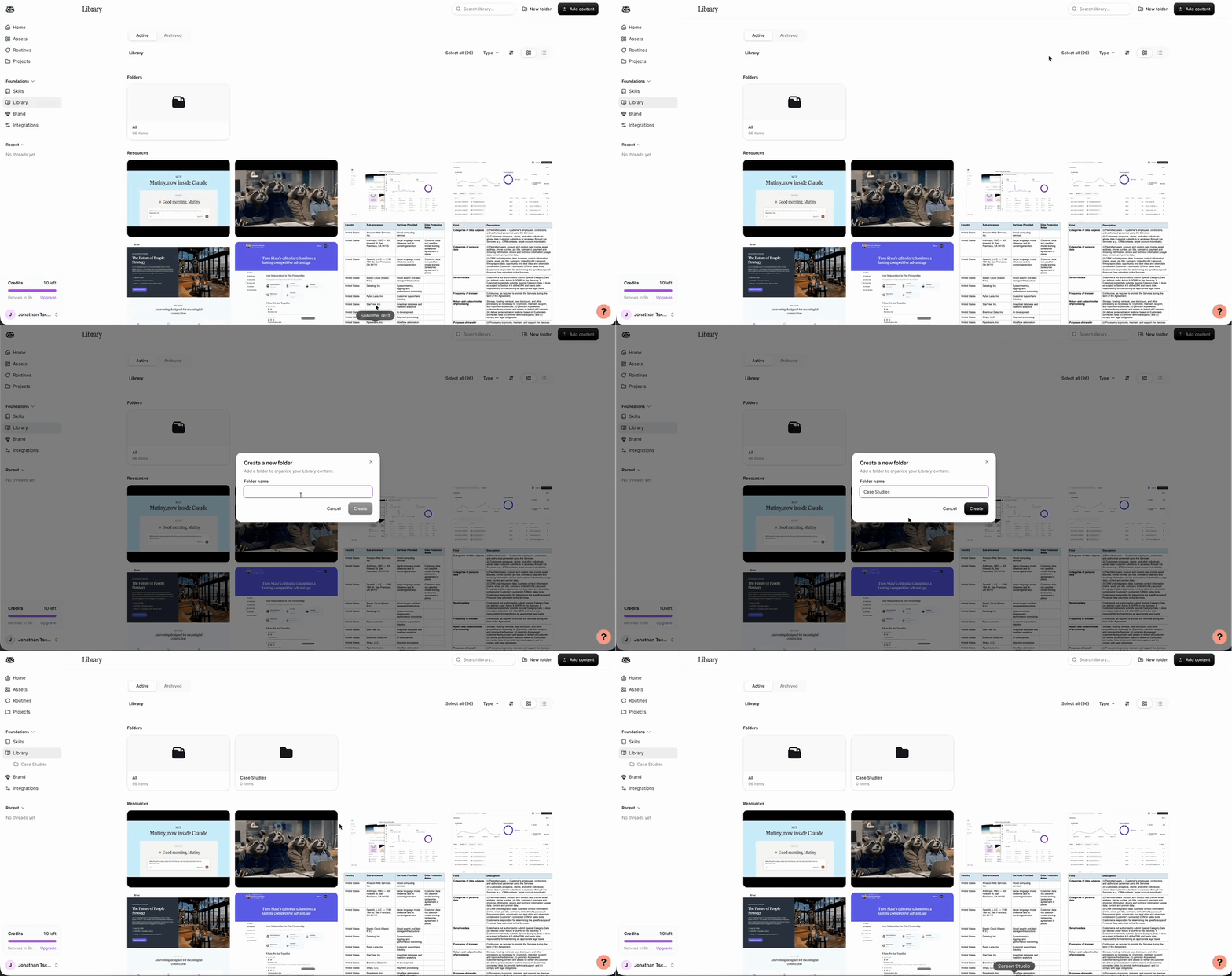
You can now organize Library resources into nested folders, browse them from a persistent folder sidebar, and move through your structure using breadcrumbs. Drag resources between folders, select multiple items for bulk actions, and switch between grid and dense-list views.
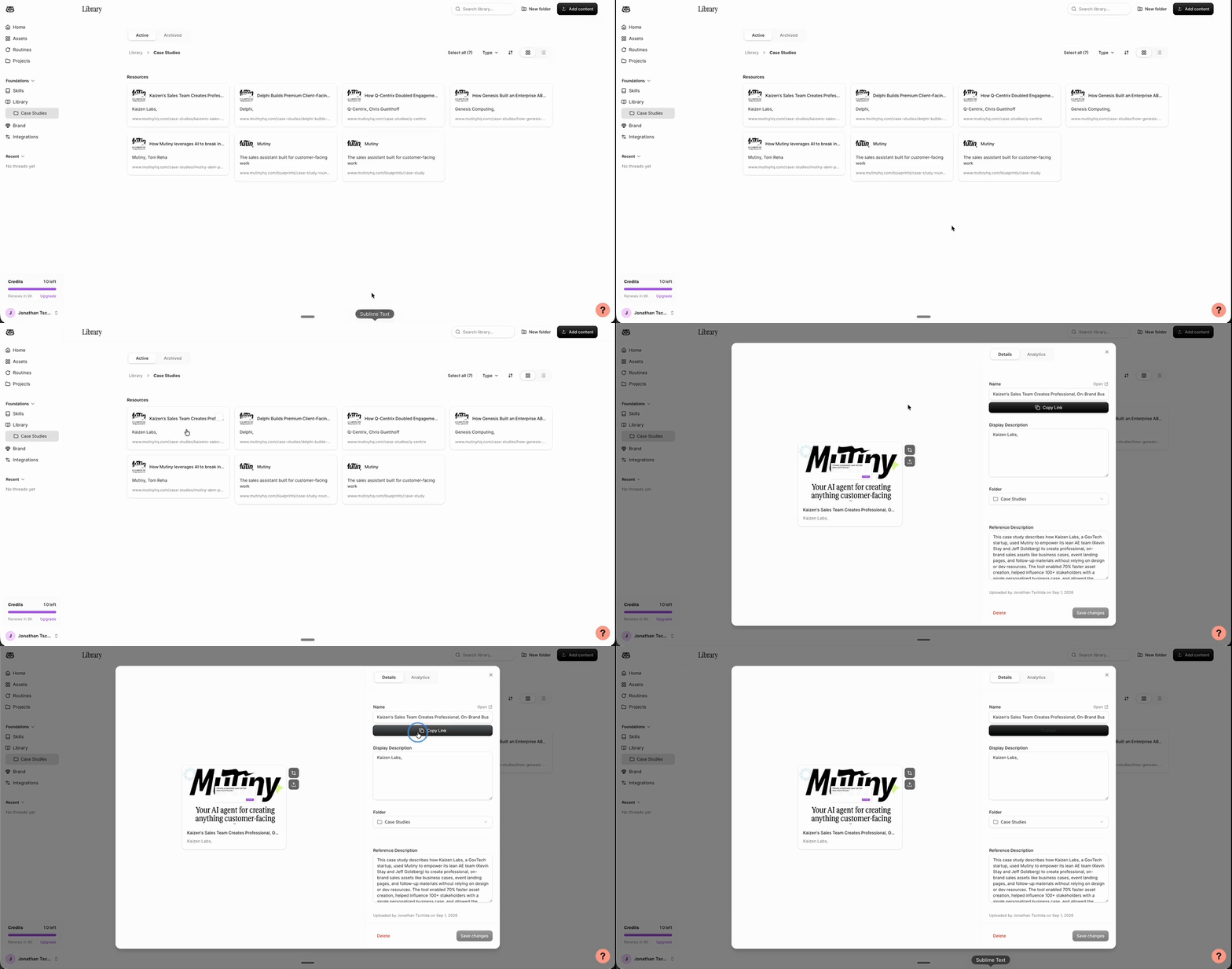
You can now see performance and engagement data for each resource in your Library, so you can tell which content gets used and what buyers respond to. Open any resource to see its analytics.
You can now generate a direct link to any resource in your Library and drop it into an email or a message. The link stands on its own, so you do not need to build an asset around the resource first.
Searching your assets now matches against the text inside each asset as well as its title. Search for something inside an asset to find it.
Assets exported to PowerPoint now match the fonts in your original design.
You can now create your first asset without running a blueprint first. Mutiny prepares common company research in advance, reducing the time between submitting your company URL and seeing your first asset.
You can now refresh asset analytics with a button instead of reloading the page.
You can now see an asset's saved versions in version history and select 'Revert to this version' to restore an earlier version.
July 2026
Admins can now review per-user monthly credit limits in the credit monitoring dashboard, with cleaner charts for tracking usage across your team.
Check it out →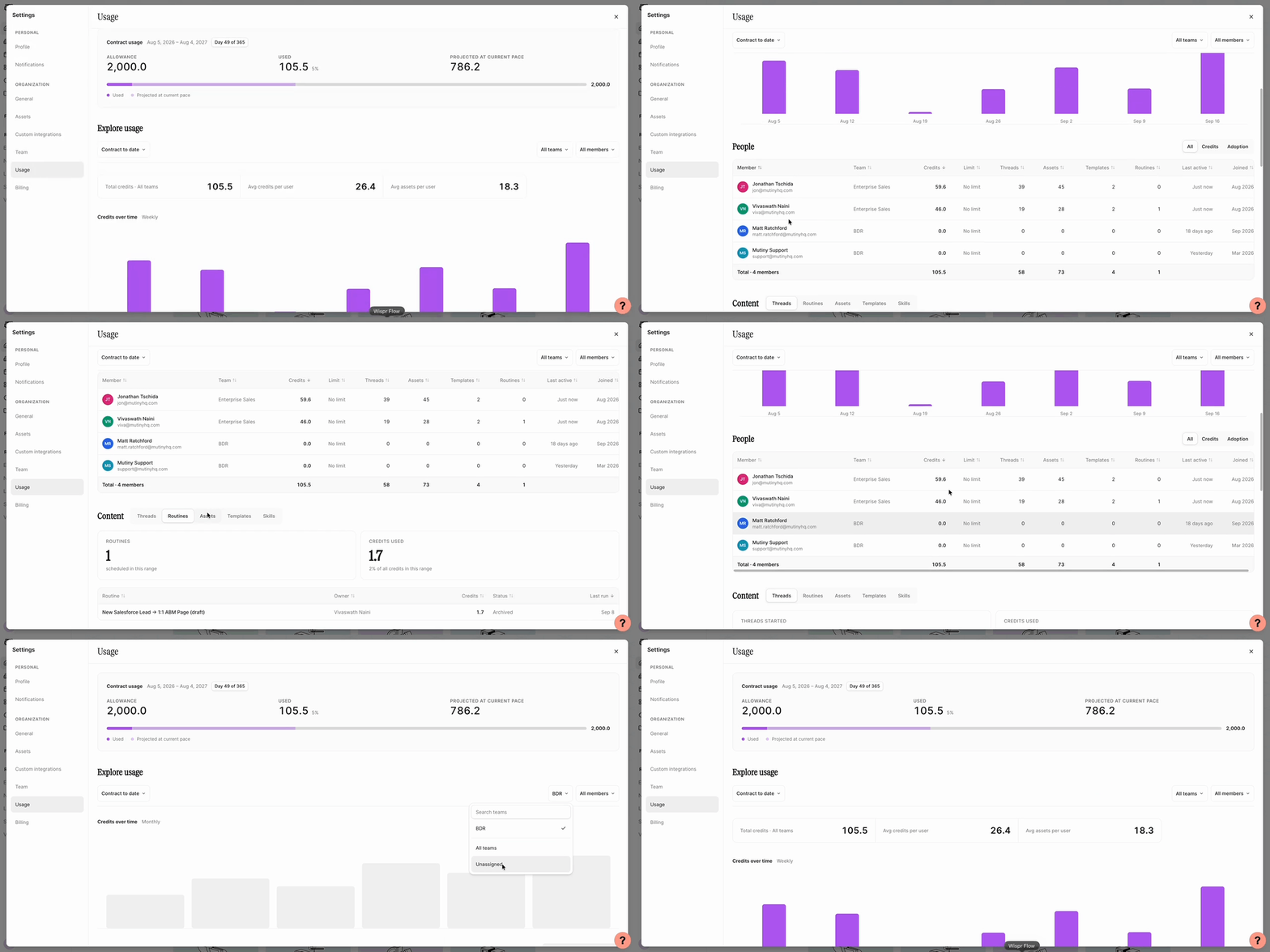
You can now ask your agent to export an asset as a PDF.
Your agent can now remember your preferences across your work and retain context within individual projects.
Your agent can now apply a different saved theme to an asset when you ask.
June 2026
You can now create and run routines without a schedule, making repeatable workflows available whenever you need them.
You can now update a routine directly from a thread instead of navigating away from your work.
Slide animations now play in the editor, so you can review motion before sharing your deck.
Suggested action pills now appear above the chat composer so you can quickly continue common workflows.
You can now create slide decks with dedicated controls and editing controls.
You can now choose Fast, Balanced, or Max based on the speed and capability your task needs.
You can now organize related threads and assets in Projects, giving your agent a shared workspace for ongoing work.
You can now share assets and templates with teammates while controlling whether they can view or edit them.
Shared work can now open in a view-only editor when you do not have permission to make changes.
You can now remove a published asset directly from the editor menu.